
Slow PrestaShop store? A Lighthouse score is not the whole story
Green Lighthouse scores don't mean a fast PrestaShop store. Lab tests vs real-user data, when hosting is to blame and where optimisation starts.
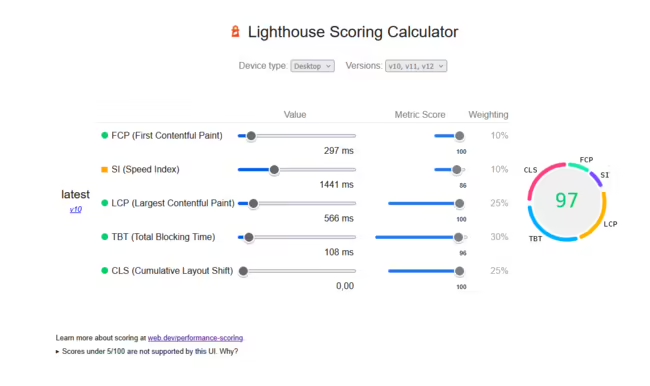
Store owners often arrive with a single goal: to see a green 90 on mobile and desktop in a measurement tool. That is understandable, since the score is simple and easy to compare. In practice, checking lab numbers alone gives little. They are a tool for finding problems, because a store with a perfect score can still frustrate customers, while a store with an average score can sell without trouble.
When time for PrestaShop optimisation is limited, the most value comes from looking for concrete causes and effects: what exactly slows the store down, where and since when. Observations from working on stores help tell a real problem apart from a number.
Lighthouse and real-user data are not the same thing
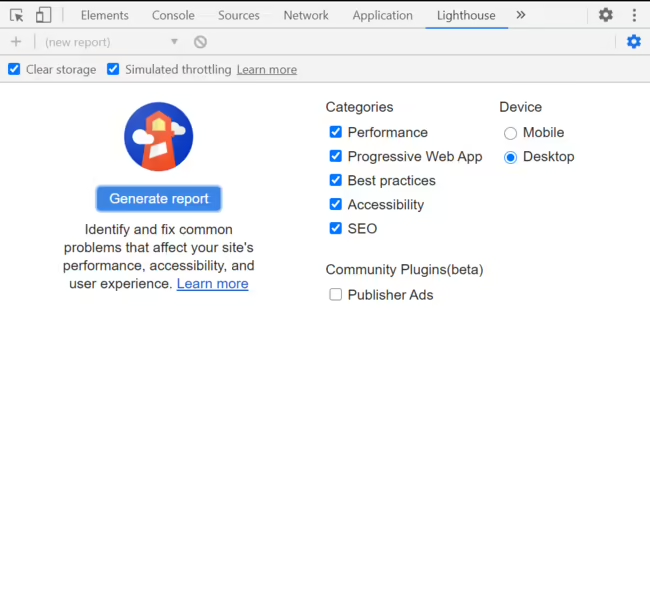
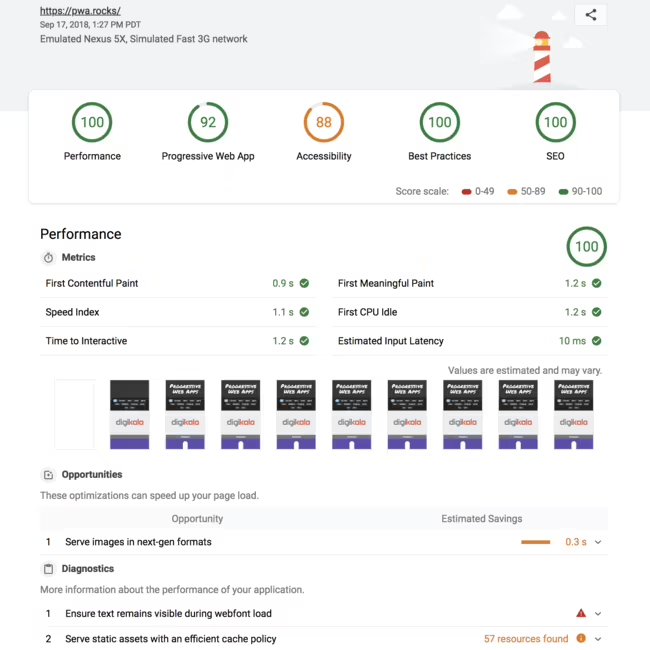
Lighthouse runs a lab test: a single page load on a simulated phone and connection. In BeGiga's practice these tests run with the store in maintenance mode, under controlled conditions, and the result is treated as a pointer to where to look. Next to it, PageSpeed Insights shows field data, meaning the experience of real Chrome users collected over the previous 28 days on various devices and connections.
That is why a fix made today can improve the lab score at once, while in field data it shows up only later. No change in PageSpeed Insights the next day doesn't mean the fix failed.
Page speed versus hosting load
Page load speed and hosting load are two separate things, yet they affect each other. The theme and images decide how quickly a page renders in the browser. The server decides how quickly it starts sending the page at all. When the server is overloaded, even a perfectly optimised theme won't help.
A typical picture looks like this: PageSpeed Insights scores vary widely between runs, and the hosting is under heavy load. The problem then most likely lies in server load, network traffic and server response time rather than in optimising the theme or template. In that situation automated traffic deserves a closer look, as described in why Cloudflare is not blocking bots.
Custom solutions and anomalies that are hard to explain
The more custom solutions a store has, the more anomalies no measurement tool can explain. Cache modules, extra analytics modules, dozens of third-party modules or page builders can interact in unpredictable ways. Before deeper analysis, an orderly review of the store installation becomes necessary: versions, modules, settings and server resources. Such an e-commerce audit cuts the time spent on observation and experiments and finds answers to some of these effects sooner.
Customers abroad and CDNs
Polish stores are usually hosted in Poland, and more and more of them also sell abroad. For a customer in Spain or the United Kingdom, every request to a server in Poland takes longer, no matter how well the store is optimised. Content delivery networks (CDNs) such as Bunny CDN or Cloudflare narrow that gap by keeping images and static files closer to the customer. The condition is a correct configuration, so the CDN doesn't cache content that must always be current, such as the cart or prices.
CCC and module scripts
PrestaShop's feature for combining, compressing and caching CSS and JavaScript files, known as CCC, should be enabled. It is essential for versioning these files correctly, CDNs included: with it, customers' browsers download the new version of a file after every change. Without it, visual changes may take a long time to reach some customers.
Two things are worth knowing, and they are not widely known. First, not every module adds its scripts to the combined file. Payment gateways, analytics modules and cookie consent modules often load them separately, so CCC won't cover them. Second, once CCC is enabled the site may suddenly stop working properly. This is usually not the feature's fault but that of JavaScript errors in some module, which stayed invisible before.
GTM, pixels and Consent Mode versus store speed
Google Tag Manager gathers marketing scripts in one place, but every tag still has to be downloaded and executed in the customer's browser. GA4, Google Ads, Meta and TikTok pixels, heatmaps, chats and survey tools usually run on every page. The impact of GTM on page speed therefore depends on what sits in the container. A container with dozens of tags, some of them left over from campaigns that ended long ago, can strain a customer's phone more than many a store module and worsen INP, the metric that measures how quickly a page responds to clicks.
Another frequent source of trouble is the same tags loading several times: through a PrestaShop module, through GTM and through code pasted into the theme at some point. Consent Mode adds to this, because it requires the default consent state to be set before any tag fires. The consent platform's script therefore loads at the very start, and its size translates directly into when the customer sees the page. Too many tags and too many scripts are in practice the same problem, and solving it starts with a list of what is genuinely needed and in what order it should run.
It shows most clearly in badly configured stores with several domains or language versions, especially in multistore mode. Each domain gets a separate container or a separate set of pixels, tags prepared for one market fire on all of them, and cross-domain tracking is set up in several places at once, so events get duplicated. Cleaning up GTM and analytics in such a store is part of a store performance audit.
A few basics worth remembering
Images should be served in modern formats and in sizes matched to where they are displayed. The page shouldn't jump while loading: shifting elements, measured by CLS, annoy customers and lower the page's rating. Scripts, especially external ones, should be kept to the necessary minimum, because each of them slows the page down.
Some modules collect data, such as visit statistics or logs, which makes the database grow over time. Regularly cleaning certain tables is therefore recommended. It is also worth checking whether the store has server resources and settings that match the requirements of its PrestaShop version. These are the basics every store performance audit starts with.
Frequently asked questions: PrestaShop
Should CCC (combine, compress, cache) be enabled in PrestaShop?
Yes. The feature is essential for the store to work properly and for versioning CSS and JavaScript files, CDNs included: after every change to these files, customers' browsers download the new version instead of the old one from cache. Before enabling it, though, keep in mind that not every module adds its scripts to the combined file, and that bugs in module code can break the site once CCC is on. The article covers this in more detail.
Why does the PageSpeed Insights score differ from the Lighthouse score?
Lighthouse runs a single lab test on a simulated device and connection. PageSpeed Insights additionally shows data from real Chrome users collected over the previous 28 days, on many devices and connections. The two numbers measure different things, so they are rarely identical.
Do I need a full-page cache module?
Only once the basic problems are solved. Such a module speeds up pages seen by anonymous visitors, but the cart, prices for logged-in customers and checkout still need the server. If the server is slow, customers will feel it exactly where they decide to buy.
- PrestaShop
- Optimisation
- Performance
- Lighthouse
- PageSpeed Insights
- Core Web Vitals